3.8 Scaling a picture to life
A picture arrives at a placeholder width, which is almost never its real one. Set scale… in the inspector fixes that in two clicks and a number: click two points on the picture whose real separation you know — a dimension line, a door width, a column grid — and type what they actually measure.
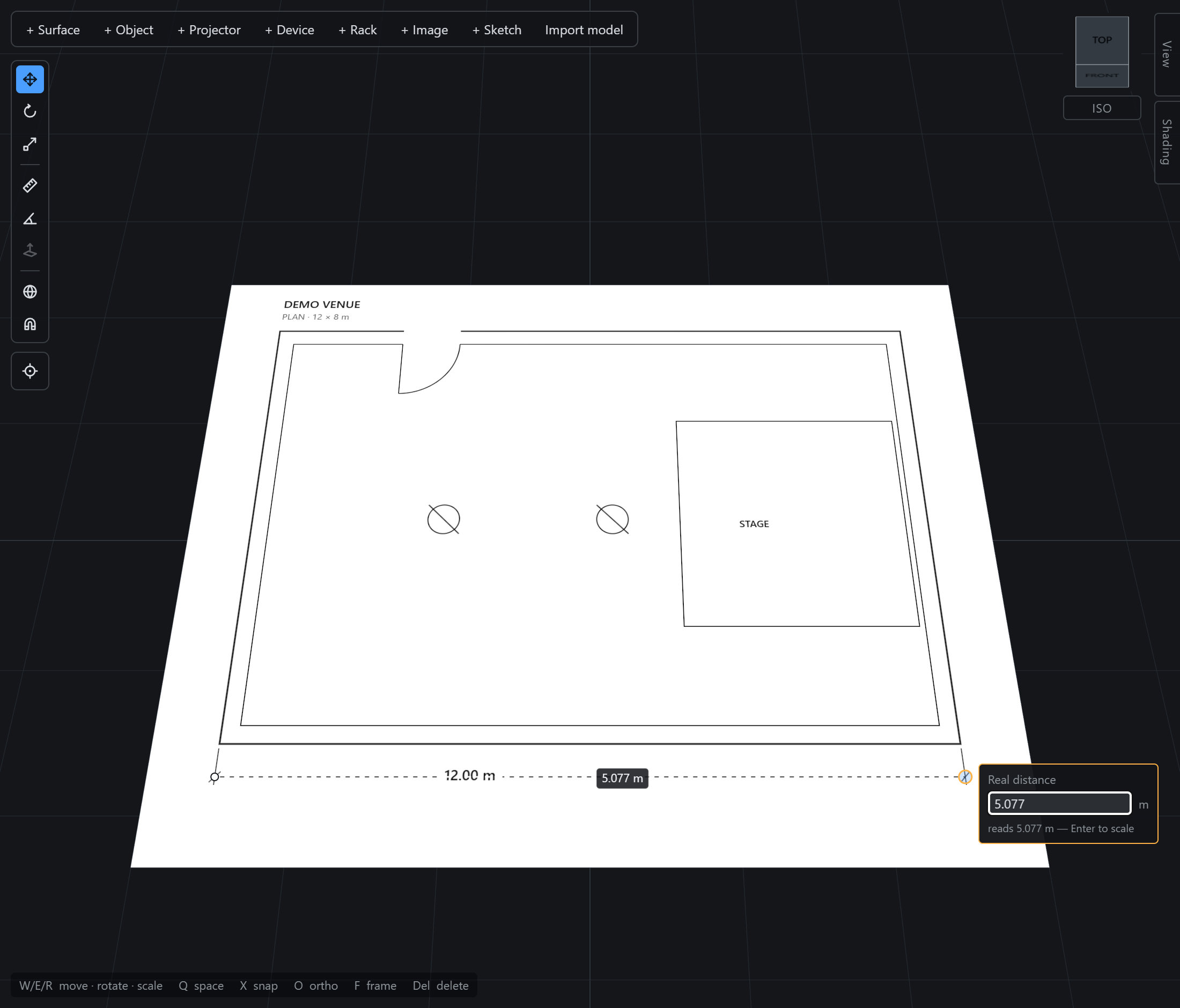
The plane then rescales uniformly about the first point you clicked. That anchor matters: it is what lets you calibrate a plan you have already positioned without it walking off where you put it. The resize and the compensating move go into the document as a single change, so one Ctrl+Z puts back both.
The number you type is the distance between those two points, not the width of the picture. A dimension line that measures a 12 m room across a sheet with margins leaves the picture wider than 12 m — correctly so. Pick the longest known distance you can see: the same half-millimetre of click error spread over 12 m is a tenth of the error it is over 1 m.