11.3 Arranging the sheet
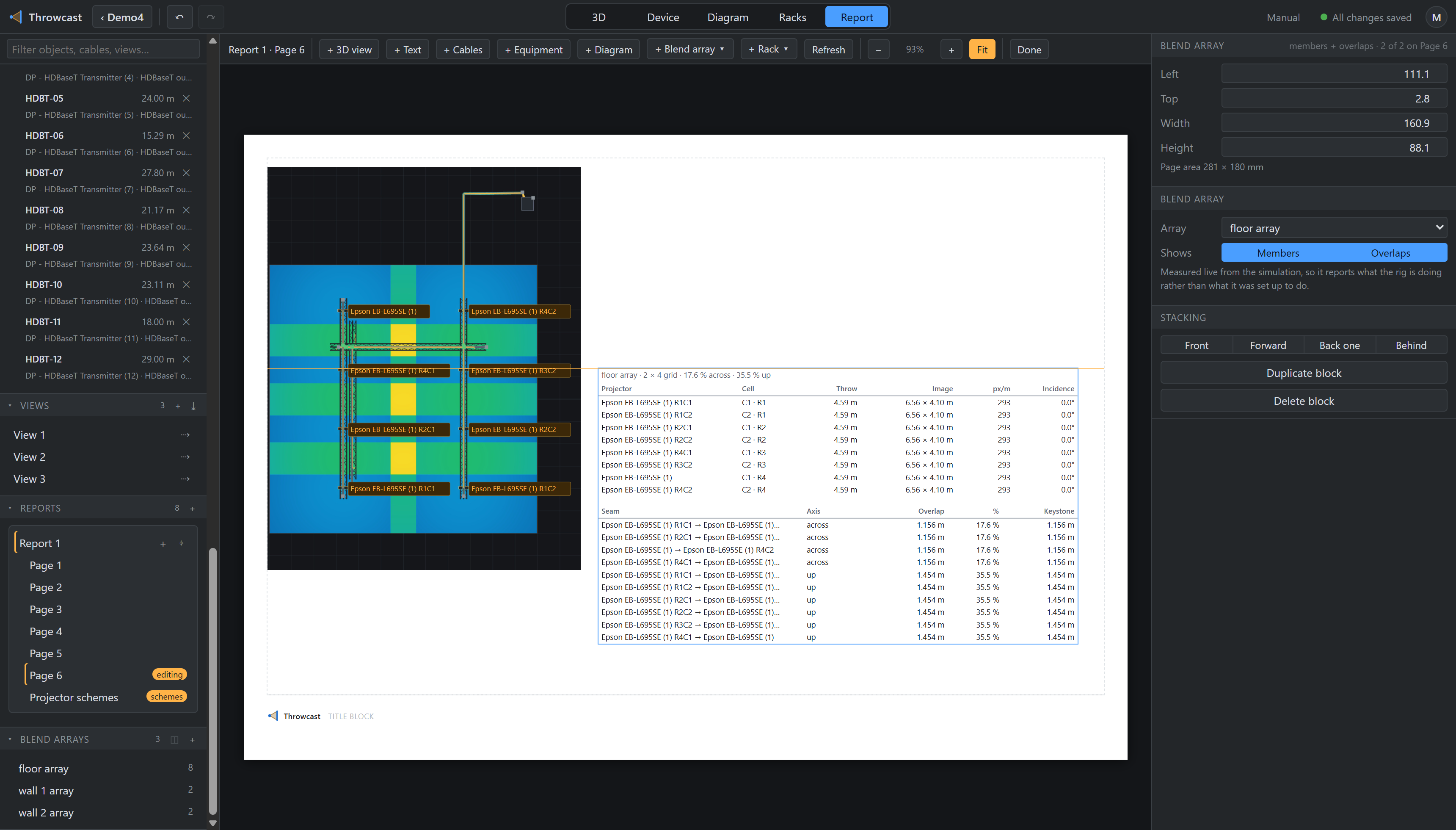
Double-click a page in the Reports section (or press Report in the mode switcher) and the sheet covers the viewport: the paper at its real proportions, the reserved title strip along the foot, and a toolbar across the top.
| Button | Does |
|---|---|
| + 3D view | Puts the view you are looking at onto the page, and opens it for framing |
| + Text | A text block, opened for typing |
| + Cables / + Equipment | The two schedules |
| + Diagram | The signal diagram, or a section of it |
| + Blend array ▾ / + Rack ▾ | Menus listing what the project has, rather than guessing one |
| Refresh | Take the cached pictures again (§11.4) |
| − + Fit | Zoom out, in, and fit the whole page in the window — the percentage between them is the current zoom. Ctrl+scroll does the same |
| Done | Leave report mode |
A block is dragged by its middle and resized by its edge and corner grips. It snaps to the edges and centre lines of the other blocks and of the page itself, and draws the guide line that says why it stopped there — no grid, because a page is a composition rather than a spreadsheet, and what you actually want is this block’s left edge flush with that one’s.
| Input | Does |
|---|---|
| Click / Ctrl-click | Select a block / add to the selection |
| Drag on empty paper | Marquee-select |
| Double-click | Open the block: type into a text block, frame a 3D view |
| Arrow keys | Nudge — Shift for ten times the step |
| Ctrl+D | Duplicate the selection, offset and on top |
| Del / Backspace | Delete the selection |
| Esc | Close a text editor, then clear the selection |
Nothing is written while a gesture is in flight: a drag or a resize is one undo entry and one save, and Esc mid-drag abandons it having written nothing. Typing into a text block is the same bargain one level up — the block is committed when the editor closes, so a paragraph is one Ctrl+Z rather than a hundred.
The inspector holds the numeric side of the same thing: Left, Top, Width and Height in millimetres from the printable area, a Stacking row (blocks are drawn in their own order, so this is what puts one in front of another), Duplicate and Delete, and whatever that kind of block is about.
Left, Top, Width and Height are the vocabulary every block has and cross kinds, so “these five, 60 mm wide” is one edit — and only the edge you typed travels, each block keeping its own other three. A schedule’s Group by, a rack block’s rack, a diagram block’s crop and a blend array’s Shows stop at the blocks of that kind. Duplicate, Delete and Stacking take the whole selection, the stack moving as one group so a selection does not shuffle against itself on the way up. The exception is a schedule’s Page (§11.7), which stays with its own block.
While a report page is open the Add cluster and the gizmo rail are gone, the gizmo detaches, and the whole properties panel is read-only for anything that is not the report — an object, a cable, a viewpoint, a blend array. A page is a saved view over the one live scene, so an edit made while laying out a page silently changes every other page in the report, and a lens is swapped from an inspector rather than from a gizmo. The report, the page and the blocks stay live: they are the document you came here to edit. Selection, shading, the view cluster and the annotation tools stay live too — that is what report mode is for.