11.4 The 3D view block
Double-click a view block — or press Edit view in its inspector — and the sheet lifts: the live viewport comes back, bound to that block’s camera, display state and hidden set, letterboxed to the block’s rectangle rather than to the whole page. That is the framing session, and it is where the annotation tools live.
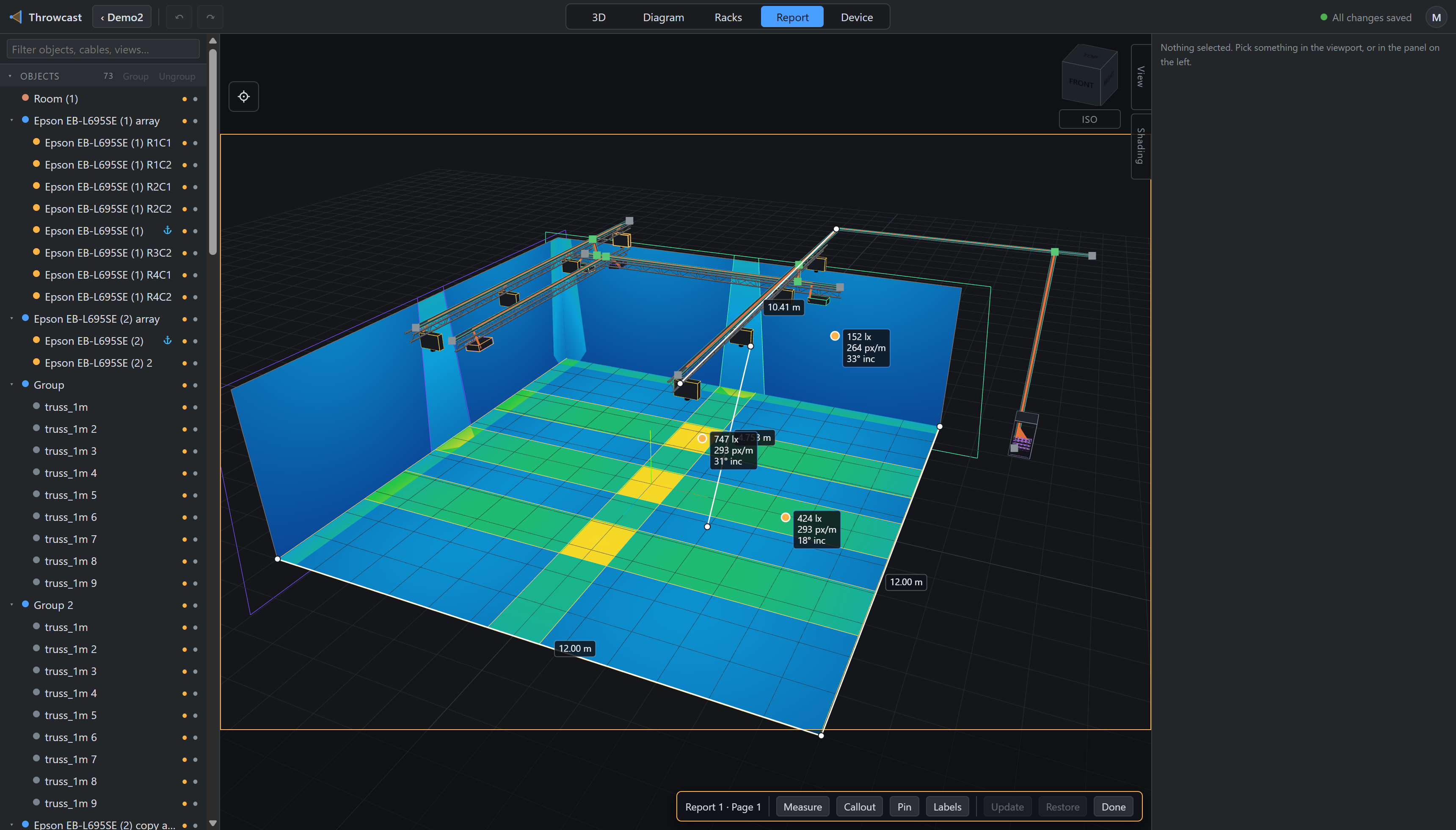
Moving the camera or toggling display marks the block modified. Nothing is written until you press Update. Restore discards your changes and re-applies the stored view. Done goes back to the sheet.
What a view freezes: the camera and its projection, the shading mode, the render mode (§11.5), beams, footprints, cable runs, cutter ghosts, the grid, the per-view Labels toggle on the page bar, and the hidden-object set you set with the dots in the object browser. So one page can carry the client’s view of the room and the one you kept, showing the tools that shaped it.
Sheets show cached pictures
Display state and the hidden set are global to the one live scene, so two blocks looking at it differently cannot both be live. A sheet therefore shows a cached render of each view, taken at named moments: opening the page, leaving a framing session, resizing the block, an undo or redo that invalidated it, and Refresh. Doing it on every document change would make a venue-sized scene impossible to arrange, which is what the sheet is for.
A picture older than the scene says stale rather than quietly lying. Arranging the sheet does not stale anything — a picture is a picture of the scene, and nudging a text block cannot have changed one.
The PDF ignores the cache entirely and re-captures every block at print resolution, however long the sheet has been open. The badge is about what you are looking at, not about what you will get.
Ctrl+D on a view copies its camera, hidden set and annotations — which is the whole reason to copy one rather than insert a fresh one and frame it again — and takes the new block’s picture straight away.