2.3 The project browser
Five collapsible sections in one scroll, under a sticky filter box.
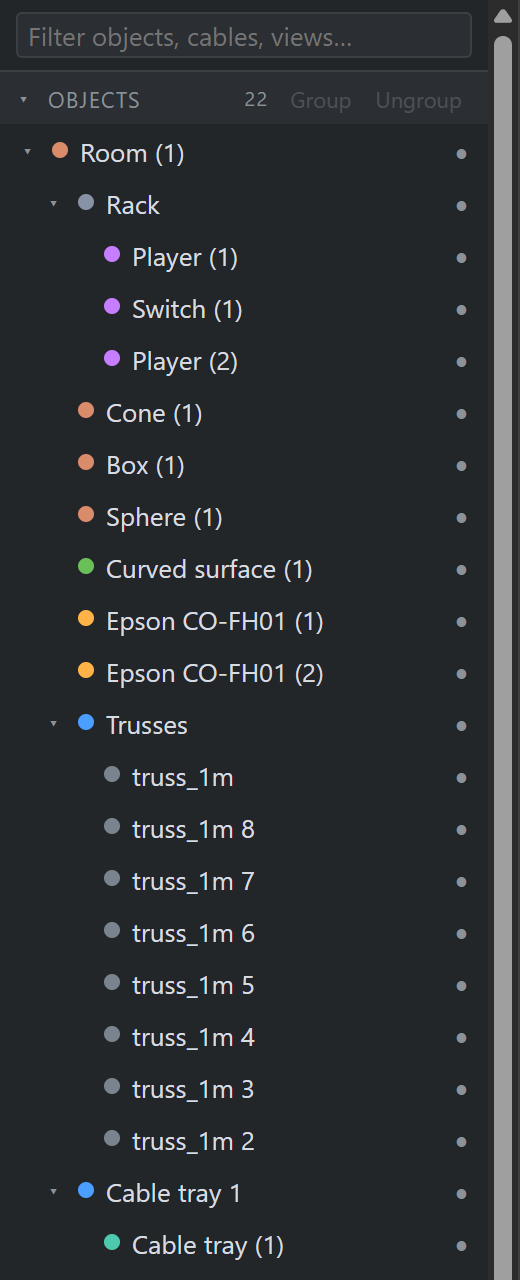
- Objects — the scene tree. Drag to rearrange, group and ungroup, and toggle per-object visibility with the dot on the right.
- Cables — every cable with its live routed length, and a header ⚙ for project-wide settings (renumbering, default slack, port types).
- Views — saved cameras. + bookmarks the current one; ⤓ renders the current view to a 3840 px PNG.
- Reports — reports, with their pages nested underneath.
- Blend arrays — the parametric projector rigs, grids and rings alike.
A single click focuses a row. A double-click opens it, where that means something: a view flies the camera there, a report page enters report mode bound to it.
Typing in the filter box expands any section that has matches and dims the count on sections that have none. Clearing the box restores exactly the expansion state you left — the filter never overwrites it.
Fold a group in the object tree and it is still folded after a trip to the Device tab, after a refresh, and the next time anyone opens the project — the fold is stored on the object, not in the session. Tidying a ninety-object venue down to a readable dozen rows is part of how the project reads, and it used to be thrown away by every reload.
It costs no undo step: a Ctrl+Z that unfolds a group instead of undoing the edit you were thinking about is one nobody can trust. A project opened read-only keeps its folds for the session instead, since folding is navigation rather than editing.